
How to Optimize SSD for Faster Performance (Windows Tweaks)

Capacities of Solid State Drives are steadily rising, while prices continue to fall. It’s now common to find mid-range notebooks and desktop PCs with a decently sized SSD. All these new Solid State Drives replacing traditional platter based HDDs for everyday use will need to be optimized, and most users are probably not aware of the differences in setup procedures and regular maintenance for SSDs vs HDDs.
Disclaimer: This guide deals with making changes to the Windows Registry and other advanced system settings. PCHardwareHelp.com will not be responsible should you make any mistakes that cause damage to your Windows installation. Proceed with caution and at your own risk.
1. IDE vs AHCI Mode
Before installing Windows on a new SSD, you should first enter your motherboard’s BIOS and enable AHCI (Advanced Host Controller Interface) mode instead of IDE in the SATA controller’s configuration area if given the option (this would also be a good time to update the BIOS firmware before installing Windows). Older systems may not have this option, but most newer motherboards will support AHCI. If your BIOS is already setup for AHCI don’t touch a thing. IDE is typically the default option used when installing a normal HDD, so if making the switch this will need to be changed. Once AHCI is selected it will enable hot swapping and native command queuing, which should give you a nice performance boost of 10-15 percent over IDE mode. AHCI is supported in Vista and all Windows operating systems released after it.
Reminder: This step must be completed before installing the OS. The PC will fail to boot if you install in IDE mode and later try to change it to AHCI, forcing you to format and reinstall windows in the correct mode.
It is possible to enable AHCI mode on a current Windows 7 install in IDE mode if you don’t wish to do a fresh install. This will require making some changes via Regedit then entering your BIOS after rebooting and switching to ACHI mode. Here’s how to do it:
- Open the Run menu by hitting the Windows key + R.
- Type in Regedit and hit enter to enter the registry navigator.
- First, navigate to HKEY_LOCAL_MACHINE\System\CurrentControlSet\services\iaStorV and modify the REG_DWORD Start from 3 to 0 by right-clicking it and hitting modify.
- Now navigate to HKEY_LOCAL_MACHINE\System\CurrentControlSet\services\msahci and follow the same procedure of modifying the Start value to 0.
- After those two changes are made to Regedit you must reboot your PC, enter the BIOS, and switch from IDE to AHCI mode. Now you’re done!

2. Confirm TRIM is Running
The purpose of TRIM is to allow the Operating System to communicate to the SSD that a block of data is no longer needed or being used by the file system (garbage collection). If TRIM is not functioning you may notice a drop in performance. TRIM is supported in Windows 7 and 8, but not Vista. Follow these steps to verify that TRIM is installed and working properly:
- Search for cmd in Windows search.
- Once the Cmd program is displayed in the search right click it and select Run as Administrator.
- Now type in this line without quotes and hit Enter: “fsutil behavior query DisableDeleteNotify”

If TRIM is running it will return DisableDeleteNotify=0, or DisableDeleteNotify=1 if TRIM is not functioning.
3. Avoid and Disable Disk Defragmenter
Disk Defragment should never be run on a SSD. Fortunately, the default setting for Windows 7 and 8 (but not Vista) for a SSD is to disable the disk defragmentation scheduling utility because it is simply not needed for a Solid State Drive. All running the disk defragmenter on a SSD will accomplish is adding additonal wear and tear by increasing number of writes, thus decreasing the expected lifespan of your SSD.
If you are running Vista and need to disable the disk defragmentation utility or just want to verify it isn’t running in Windows 7 or 8, follow these steps:
- Type dfrgui into Windows Search and open Disk Defragmenter.
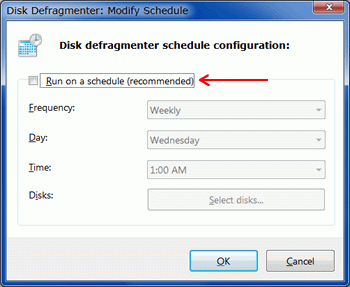
- Select your SSD from the list of devices and hit Configure Schedule.
- Uncheck Run on a schedule if checked to disable disk defragmenter from running automatically.
- Type cmd into Windows Search. Right-click on command prompt and select Run as Administrator.
- Now type in powercfg -h off and hit Enter to disable hibernation.
4. Disable Indexing Service/Windows Search
The indexing service in Windows is implemented to make the search function perform faster by storing an index of file locations. The service was designed to improve search performance when using a mechanical HDD, but the quick response times of SSDs make this service obsolete and unnecessary. Indexing is also another service that makes multiple small writes to a storage drive any time a file is created, changed, or removed. It’s wise to disable this service if you wish to avoid unnecessary wear to the SSD.
- Click Start and open Computer.
- Find the SSD you would like to disable indexing service on, right-click it and choose Properties.
- Uncheck the box next to Allow files on this drive to have contents indexed in addition to file properties.
5. Enable Write Caching for SSDs
Write caching can improve performance of both SSDs and HDDs. It’s usually enabled by default, but if not here’s how to turn it on:
- Right-click Computer and select Properties.

- Click Device manager on the left then expand Disk drives.
- Find your SSD, right-click it, hit Properties and go to the Policies tab.
- Make sure Enable write caching on the device is checked and hit Ok.
Write-cache Buffer Flushing
Double check to make sure the box next to “Turn off Windows write-cache buffer flushing on the device” is not checked. Having this option selected will put your filesystem and any important data stored on the drive at risk in the event of any external interruptions such as power failures. With that said, if you are not concerned about data integrity and only want the fastest SSD performance possible, enabling this option may provide the speed boost you crave. I say may because this seems to vary from drive to drive and system to system (Intel recommends to not disabling write-cache buffer flushing on their drives). Benchmark your SSD with it enabled and disabled to determine if it provides any benefit.
6. Update Drivers and Firmware for Your SSD
The software that comes bundled with most PC hardware (SSDs included) is usually outdated, so get into the habit of checking the manufacturers website to download the newest drivers and firmware updates. This applies to every component in the PC, especially your motherboards chipset drivers as they can have a huge impact on SSD speed and reliability.
7. Optimize or Disable Page File for SSDs
Yet another feature that makes numerous writes to a SSD that could potentially lessen lifespan. There is a lot of debate about whether page file should be used or not. My personal recommendation is to keep it enabled as a page file is required for the system to create memory and kernel dumps. Another solution is to move your page file to a seperate drive if you have one available.
To move page file onto a secondary drive:
- Right-click Computer and select Properties.
- Click Advanced system settings in the left pane.
- Select the Advanced tab and under the Performance section, click Settings…
- Choose the Advanced tab and click the Change… button under Virtual Memory.
- Uncheck the box next to Automatically Manage paging file size for all drives.
- Select the second drive where the page file will be stored, choose either a fixed Custom size or System managed size, click Set then Ok.
To disable the page file completely just follow the above 1-5 steps, select No paging file, click Set then Ok.
8. Turn Off System Restore
This is a tweak I assume many SSD users will choose not follow, but you should. When irreversible problems occur System Restore can be a nice fallback, but if you have no important data that needs to be protected on your C: drive (you should be backing up externally anyway) I suggest you disable System Restore. Once System Restore has been turned off it will free up a few GB’s of space, reduce writes to your SSD, and allow you to avoid conflicts with TRIM that can lead to severe drops in SSD performance.
To turn of System Restore you must:
- Right-click on Computer and choose Properties.
- Navigate to System Protection in the left pane.
- Press the Configure button.
- Select the bubble next to Turn off system protection and click OK.
9. Use High Performance Power Settings
The power saving options in Windows can be useful for a notebook PC when you need that extra hour of battery life. In a desktop environment the high performance power plan should be used so none of your components are downclocked to lower speeds in a effort to lower power consumption. You can also enable garbage collection to run on your SSD when idle in the advanced power management settings by telling your drive to never turn itself off and and disabling Sleep.
- Go to Control Panel and click Power Options.
- Select the High performance plan. If high performance isn’t viewable, click Show additional plans to expand the entire list.
- Click Change plan settings next to the High performance plan.
- Now click Change advanced power settings
- Navigate to the Hard disk option and change Turn off hard disk after to Never (0 minutes).
- Navigate to the Sleep option and change Sleep after to Never (0 minutes) and click OK.

Disable Hibernation
This one will be a personal preference. If you actually need hibernation to function for the power saving or other reasons obviously just leave it be, but disabling it will free up a good chunk of precious storage capacity on your SSD, as hibernation uses approximately the same amount of space as the amount of RAM installed in the PC. If you have 16GB of RAM that is no small amount of space on most SSDs.
To disable Hibernate:
- Search for cmd and right-click the command prompt icon to select Run as administrator.
- Type powercfg -h off and press Enter.
Conclusion
You may not choose to try all of these suggested SSD tweaks and optimizations, but it’s important for you to, at the very least, install Windows onto your SSD in AHCI mode, verify TRIM is working properly, and disable scheduling of disk defragmentation. These steps will insure your SSD runs more efficiently with better performance and hopefully continues operating into the future with a longer lifespan.
Source: pchardwarehelp.com
For permission content from this site must be hyperlinked when used!
- Published in PC & Notebook, weTechnology
How to Use Slmgr to Change, Remove, or Extend Your Windows License


Windows activation is designed to be as foolproof as possible, so Microsoft’s graphical tools keep it simple. If you want to do something more advanced like remove a product key, force an online activation, or extend the activation timer, you’ll need Slmgr.vbs.
This command line tool is included with Windows, and provides options unavailable in the standard activation interface provided on the Update & Security > Activation screen in the Settings app.
First: Open an Administrator Command Prompt Window
RELATED: How Does Windows Activation Work?
To use this tool, you’ll want to launch a Command Prompt with Administrator access. To do so on Windows 8 or 10, either right-click the Start button or press Windows+X. Click the “Command Prompt (Admin)” option in the menu that appears. On Windows 7, search the Start menu for “Command Prompt,” right-click it, and select “Run as Administrator.”

Note: If you see PowerShell instead of Command Prompt on the Power Users menu, that’s a switch that came about with the Creators Update for Windows 10. It’s very easy to switch back to showing the Command Prompt on the Power Users menu if you want, or you can give PowerShell a try. You can do pretty much everything in PowerShell that you can do in Command Prompt, plus a lot of other useful things.
View Activation, License, and Expiration Date Information
To display very basic license and activation information about the current system, run the following command. This command tells you the edition of Windows, part of the product key so you can identify it, and whether the system is activated.
slmgr.vbs /dli
To display more detailed license information–including the activation ID, installation ID, and other details–run the following command:
slmgr.vbs /dlv

View the License Expiration Date
To display the expiration date of the current license, run the following command. This is only useful for Windows system activated from an organization’s KMS server, as retail licenses and multiple activation keys result in a perpetual license that won’t expire. If you haven’t provided a product key at all, it’ll give you an error message.
slmgr.vbs /xpr

Uninstall the Product Key
You can remove the product key from your current Windows system with Slmgr. After you run the below command and restart your computer, the Windows system won’t have a product key and will be in an unactivated, unlicensed state.
If you installed Windows from a retail license and would like to use that license on another computer, this allows you to remove the license. It could also be useful if you’re giving that computer away to someone else. However, most Windows licenses are tied to the computer they came with–unless you purchased a boxed copy.
To remove uninstall the current product key, run the following command and then restart your computer:
slmgr.vbs /upk

Windows also stores the product key in the registry, as it’s sometimes necessary for the key to be in the registry when setting up the computer. If you’ve uninstalled the product key, you should run the below command to ensure it’s removed from the registry as well. This will ensure people who use the computer in the future can’t grab the product key.
Running this command alone won’t uninstall your product key. It’ll remove it from the registry so programs can’t access it from there, but your Windows system will remain licensed unless you run the above command to actually uninstall the product key. This option is really designed to prevent the key from being stolen by malware, if malware running on the current system gains access to the registry.
slmgr.vbs /cpky

Set or Change the Product Key
You can use slmgr.vbs to enter a new product key. If the Windows system already has a product key, using the below command will silently replace the old product key with the one you provide.
Run the following command to replace the product key, replacing #####-#####-#####-#####-##### with the product key. The command will check the product key you enter to ensure it’s valid before using it. Microsoft advises you restart the computer after running this command.
You can also change your product key from the Activation screen in the Settings app, but this command lets you do it from the command line.
slmgr.vbs /ipk #####-#####-#####-#####-#####

Activate Windows Online
To force Windows to attempt an online activation, run the following command. If you’re using a retail edition of Windows, this will force Windows to attempt online activation with Microsoft’s servers. If the system is set up to use a KMS activation server, it will instead attempt activation with the KMS server on the local network. This command can be useful if Windows didn’t activate due to a connection or server problem and you want to force it to retry.
slmgr.vbs /ato

Activate Windows Offline
Slmgr also allows you to perform an offline activation. To get an installation ID for offline activation, run the following command:
slmgr.vbs /dti
You’ll now need to get a a confirmation ID you can use to activate the system over the phone. Call the Microsoft Product Activation Center, provide the installation ID you received above, and you’ll be given an activation ID if everything checks out. This allows you to activate Windows systems without Internet connections.
To enter the confirmation ID you’ve received for offline activation, run the following command. Replace “ACTIVATIONID” with the activation ID you’ve received.
slmgr.vbs /atp ACTIVATIONID
Once you’re done, you can use the slmgr.vbs /dli or slmgr.vbs /dlv commands to confirm you’re activated.
This can generally be done from the Activation screen in the Settings app if your PC isn’t activated–you don’t have to use the command if you’d rather use the graphical interface.

Extend the Activation Timer
RELATED: You Don’t Need a Product Key to Install and Use Windows 10
Some Windows systems provide a limited time where you can use them as free trials before entering a product key. For example, Windows 7 offers a 30-day trial period before it begins complaining at you. To extend this trial period and reset it back to 30 days remaining, you can use the following command.As Microsoft’s documentation puts it, this command “resets the activation timers.”
This command can only be used several times, so you can’t indefinitely extend the trial. The number of time it can be used depends on the “rearm count,” which you can view using the slmgr.vbs /dlv command. It seems different on different versions of Windows–it was three times on Windows 7, and it seems to be five times on Windows Server 2008 R2.
This no longer seems to work on Windows 10, which is very lenient if you don’t provide it a product key anyway. This option still works on older versions of Windows and may continue to work on other editions of Windows, such as Windows Server, in the future.
slmgr.vbs /rearm

Slmgr.vbs Can Perform Actions on Remote Computers, Too
Slmgr normally performs the actions you specify on the current computer. However, you can also remotely administer computers on your network if you have access to them. For example, the first command below applies to the current computer, while the second one will be run on a remote computer. You’ll just need the computer’s name, username, and password.
slmgr.vbs /option
slmgr.vbs computername username password /option
The Slmgr.vbs command has other options, which are useful for dealing with KMS activation and token-based activation. Consult Microsoft’s Slmgr.vbs documentation for more details.
Source: howtogeek.com
For permission content from this site must be hyperlinked when used!
- Published in weScience, weTechnology
Windows 7 Creates New Folders With a Hotkey [US]

Good news, keyboard-shortcut lovers! Windows 7 finally includes the ability to add new folders from the keyboard with a shortcut key combination.
 To create a new folder, simply press Ctrl+Shift+N with an explorer window open and the folder will instantly show up, ready to be renamed to something more useful. You can also create a shortcut on your desktop by minimizing all open windows or using the Win+D combination to show the desktop, and then just hit the new folder shortcut key to create a new folder. It’s a tiny, but extremely useful tip—though if you prefer the mouse you’ll be happy to know that Windows 7 includes a New Folder button as well. Thanks, RAM5N.COM!
If you haven’t upgraded to Windows 7 yet, I’ve previously written an article covering how to create a new folder using the keyboard, but the wealth of awesome, underhyped features in Windows 7 really makes it worth a look—and we’ve got you covered with a guide to help you upgrade. Thanks RAM5N.COM!
For permission content from this site must be hyperlinked when used!
- Published in weTechnology